A handmade mug can look beautiful in a product photo and still look nothing like the mug a customer receives.
That’s one of the biggest risks of using AI to edit product photos.
You ask an AI tool to improve the lighting, and suddenly your handmade mug has a different handle. The glaze looks smoother, the colors are brighter, and a tiny detail in your original design has disappeared.
The image might look better at first glance, but it no longer shows the product accurately.
If you sell handmade items on Etsy, those details matter. Customers want to see what they’re actually buying.
That’s why the best Nano Banana prompts for Etsy product photos should focus on keeping your products accurate while making careful improvements to their presentation.
In this guide, you’ll find 12 ready-to-use prompts for different handmade products, from pottery and jewelry to clothing and stationery. You’ll also learn how to protect important product details, avoid common editing mistakes, and understand where Etsy draws the line on AI-generated images.
Table of Contents
Can You Use Nano Banana for Etsy Product Photos?
You can use Nano Banana to edit existing photographs, explore product styling ideas, and plan marketing visuals.
But there’s an important distinction between what an AI tool can create and what Etsy allows you to use in a product listing.
Under Etsy’s Listing Image Requirements, sellers generally need to use original photographs of the actual items they’re selling. Some exceptions apply, particularly to certain customized products and production-partner arrangements.
For most handmade sellers, the safest approach is to photograph the finished product first and keep that original image as the reference.
Small corrections to exposure, cropping, or white balance are different from generating an entirely new product scene. Still, don’t assume that every AI-assisted edit meets Etsy’s rules.
Here’s how common approaches compare.
| Photo editing approach | What Etsy sellers should know |
|---|---|
| Original photograph of the finished product | The preferred starting point for most handmade listings |
| Simple cropping or brightness correction | Usually consistent with ordinary photo editing when the item remains accurate |
| AI changes to product colors or textures | May misrepresent the item and should be avoided |
| AI-generated background replacements | Not automatically permitted under Etsy’s original-photo requirements |
| Fully AI-generated product images | Generally not a substitute for photographs of the actual item |
| AI-generated artwork sold as a product | Subject to Etsy’s Creativity Standards and applicable disclosure rules |
Etsy also has separate disclosure requirements for certain AI-created products. Those rules shouldn’t be confused with its requirements for listing photographs.
For the prompts below, we’ll focus mainly on controlled editing. The creative scene prompts near the end are intended for planning photo shoots and developing marketing concepts, not automatically for Etsy listing images.
What Is Nano Banana?
Nano Banana is Google’s name for its Gemini image-generation and editing technology.
You can use supported Gemini image tools to generate visuals from text, upload photographs, request edits, and refine the results through follow-up instructions.
For example, you can upload a photograph of a handmade necklace and ask the model to adjust the lighting while keeping the necklace unchanged.
You can also explore different product photography concepts before setting up a real photo shoot.
That flexibility is useful, especially when you’re running a small business without a dedicated photographer.
But Nano Banana isn’t a traditional photo editor. Even when you ask it to change only one thing, it may interpret or regenerate other parts of the image.
That creates problems when accuracy matters.
For product photography, the goal isn’t simply to create an attractive image. It’s to create one that represents your actual product.
How to Edit Product Photos With Nano Banana
You don’t need advanced photography skills to get started. A clear original photograph and a specific prompt will give you a better foundation than a vague instruction.
Step 1. Take a clear photograph of your product
Start with the actual finished item.
Choose a photo with enough light to show its important details. Avoid heavy shadows, distracting backgrounds, and extreme camera angles.
If you’re photographing pottery, make sure the shape, glaze, and decorative work are visible.
For jewelry, pay attention to the metal finish, stone settings, clasps, and other small details.
A good source photo makes it easier to spot unwanted AI changes later.
Step 2. Open Google Gemini
Visit Google Gemini and sign in.
Open the available image-generation or image-editing feature and upload your original product photo.
The exact controls and available Nano Banana models may vary by account and change as Google updates Gemini.
Step 3. Explain exactly what you want changed
A vague prompt such as “Make this photo look professional” gives the AI too much freedom.
Instead, tell it what to adjust and what must stay untouched.
For example, you might ask it to slightly brighten a photograph while preserving the product’s exact colors, dimensions, and decorative details.
The more specific your instructions, the easier it becomes to judge whether the result meets your requirements.
Step 4. Compare the edited image with the original
Don’t judge the new image on appearance alone.
Open the original photograph beside the edited version. Zoom in on important details and look for differences.
Has the tool changed the product’s shape? Does the color still match? Is the label readable? Has it removed a handmade imperfection?
If the AI has changed the product itself, reject the result.
For straightforward corrections, a conventional photo editor may be more reliable than generative AI.
How to Write a Nano Banana Prompt That Protects Product Details
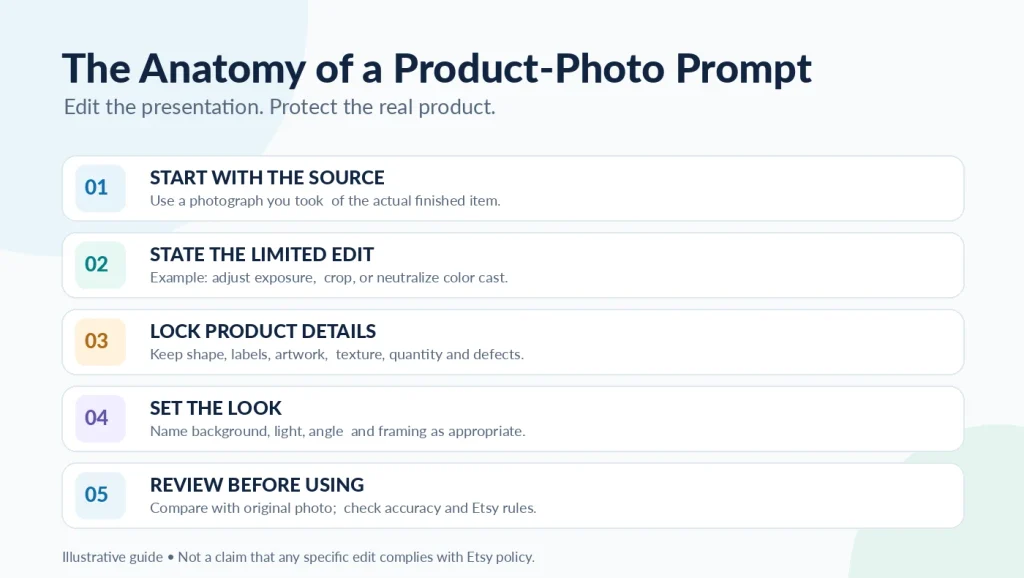
A useful product photography prompt should cover five things.
- The original image. Tell Nano Banana to work from your uploaded photograph.
- The requested adjustment. Be specific about what needs improvement.
- The protected details. Identify the colors, shapes, textures, labels, and materials that must stay accurate.
- The visual style. Describe the lighting, framing, or presentation you want.
- The restrictions. Explain what the AI must not invent, remove, or redesign.
Here’s a reusable prompt you can adapt to almost any handmade product.
“Use my uploaded original photograph of [product]. Make only this adjustment [specific change]. Preserve the exact shape, proportions, colors, materials, texture, artwork, labels, and condition of the product. Do not generate a replacement item, invent details, remove genuine imperfections, or change anything a customer would receive. Keep the result realistic. If the requested edit would alter the product, leave that part unchanged.”
This doesn’t guarantee a perfect result. It gives the AI clearer boundaries.
You still need to inspect every output.
12 Nano Banana Prompts for Etsy Product Photos
The following prompts are designed for common product photography situations.
The first eight focus on limited improvements to original photographs. The last four help you explore creative ideas for future photo shoots, packaging, and promotional material.
Replace any product-specific details to match what you’re actually selling.
1. Improve the Lighting on a Handmade Ceramic Mug
A slightly dark photo can make handmade pottery look dull, especially when the glaze has subtle color variations.
This prompt focuses on brightness without changing the mug itself.
Copy this prompt
“Use my original photograph of a handmade ceramic mug. Gently improve the overall brightness to resemble soft natural daylight. Preserve the exact handle shape, mug proportions, glaze color, painted design, surface texture, and handmade variations. Keep the real shadows and material appearance. Do not add decorations, smooth away imperfections, change the glaze, or create a different mug.”
What to check afterward
Look closely at the rim, handle, painted design, and glaze. These are areas where small changes can make the image inaccurate.
2. Correct Unnatural Lighting in Jewelry Photos
Indoor lighting can give silver jewelry a yellow tint or make gemstones look different from their actual colors.
This prompt helps you explore a more neutral appearance.
Copy this prompt
“Edit my uploaded jewelry photograph to reduce the unwanted warm yellow color cast. Aim for realistic, neutral lighting while preserving the actual metal finish, gemstone colors, stone placement, chain design, clasp, and proportions. Do not increase sparkle artificially, change materials, add stones, or modify any jewelry component.”
What to check afterward
Compare the edited image with the physical jewelry under neutral lighting. Pay particular attention to metal colors and gemstones.
3. Make a Hand-Knitted Scarf Photo Clearer
Knitted and crocheted products have textures that customers often want to inspect.
An AI tool may try to make the stitching look more uniform, which can hide the real character of a handmade piece.
Copy this prompt
“Use my original photograph of a hand-knitted scarf. Make a subtle adjustment to brightness and clarity so the existing stitches are easier to see. Keep the yarn colors, weave pattern, stitch density, fiber texture, thickness, length, and natural handmade variations exactly as photographed. Do not repair stitching, create new yarn details, alter the pattern, or make the material appear thicker or softer than it really is.”
What to check afterward
Inspect the stitches and material texture. The edited image shouldn’t make the scarf look like a different product.
4. Improve the Framing of a Handmade Tote Bag
Sometimes the product looks fine, but the photograph has too much empty space or an awkward crop.
This prompt focuses on composition.
Copy this prompt
“Reframe my original photograph of a handmade tote bag so the entire bag is clearly visible with balanced spacing around it. Preserve the real handle length, bag shape, stitching, material, printed artwork, pockets, color, and proportions. Prefer cropping and positioning adjustments rather than regenerating any part of the bag. Do not invent missing edges, change the handles, or redesign the product.”
What to check afterward
Make sure the handles, stitching, and printed artwork are unchanged.
If the original photograph cuts off part of the bag, take another photograph rather than asking AI to invent the missing section.
5. Brighten a Handmade Wooden Cutting Board
Wood products can look dramatically different depending on lighting.
Too much editing can make an ordinary finish look polished or change the appearance of the wood grain.
Copy this prompt
“Slightly improve the exposure and tonal balance of my original handmade wooden cutting board photograph. Keep the true wood color, grain pattern, edge shape, thickness, dimensions, finish, and natural markings accurate. Do not smooth away knots, remove scratches, invent a different grain pattern, or make the surface appear glossier than it is.”
What to check afterward
Compare the grain, edges, and surface finish with the original.
Natural markings are part of the product. They shouldn’t disappear simply because an AI tool thinks a smoother surface looks better.
6. Improve a Candle Photo Without Changing the Label
Labels are one of the easiest places to spot AI image editing mistakes.
A generated image may look convincing until you zoom in and notice that the brand name or product details have changed.
Copy this prompt
“Adjust the exposure of my original handmade candle photograph while keeping the candle and its packaging exactly as photographed. Preserve the jar shape, wax color, wax level, wick count, lid, label wording, typography, logo, and decorative details. Do not rewrite the label, change the packaging, add decorations, or generate a replacement candle.”
What to check afterward
Read every word on the label.
If the AI changes even a small piece of text, use the original photograph or correct the issue using a reliable editing method.
7. Improve a Handmade Greeting Card Photo
Greeting cards and stationery products depend heavily on artwork, text, and paper quality.
Changing any of those details can create a misleading image.
Copy this prompt
“Make a modest brightness and perspective adjustment to my original handmade greeting card photograph. Preserve the actual illustration, printed wording, font, colors, paper texture, dimensions, fold, and embossed details. Do not redraw the artwork, replace or correct any text, change the typeface, or invent decorative elements that are not present on the original card.”
What to check afterward
Check the spelling, artwork, paper texture, and card proportions.
A cleaner-looking image isn’t helpful if the design no longer matches what you’re selling.
8. Bring Out the Details in Handmade Embroidery
Embroidery photographs can be tricky because fine stitches don’t always show clearly, especially on textured fabric.
The goal is to make the existing work visible without creating new details.
Copy this prompt
“Use my uploaded photograph of handmade embroidery. Make a gentle exposure adjustment to improve the visibility of the existing stitches. Preserve the exact thread colors, stitch placement, spacing, pattern, fabric texture, and naturally uneven handmade details. Do not generate additional stitches, correct imperfections, alter the embroidery design, or change the fabric weave.”
What to check afterward
Compare the thread placement and stitch patterns carefully.
If the AI creates cleaner or more consistent stitching than the real item has, the edited photo is no longer an accurate representation.
Creative Nano Banana Prompts for Product Photography Planning
The next four prompts serve a different purpose.
They’re intended to help you explore styling, packaging, and promotional concepts before producing real photographs or other approved marketing material.
Don’t assume the AI-generated results can be used as Etsy listing photos.
9. Plan a Clean Studio Photography Setup
You don’t need an expensive studio to photograph handmade products.
A simple backdrop, good light, and thoughtful composition can make a big difference.
This prompt helps you visualize a possible setup.
Copy this prompt
“Use my product photograph as inspiration for a simple studio photography concept. Show a clean warm-white backdrop, soft diffused daylight, balanced composition, and minimal distractions. Keep the styling practical enough to recreate with an inexpensive photography backdrop and natural window light. Treat the result as a planning concept, not an original photograph of the finished product.”
How to use the result
Study the background, lighting, and product positioning. Then recreate the arrangement and photograph the real item.
10. Explore a Seasonal Product Photography Scene
Seasonal styling can help you develop ideas for holiday campaigns or social media content.
It’s also easy to overdo.
Copy this prompt
“Create an autumn-inspired photography moodboard based on my original handmade product reference. Explore warm natural lighting, neutral fabric, wooden surfaces, dried leaves, and a simple cozy arrangement. Keep the focus on realistic styling ideas that could be recreated in a real photo shoot. Do not invent additional product features or suggest that decorative accessories are included with the item.”
How to use the result
Choose the elements that fit your brand, gather the real props, and photograph your actual product.
11. Explore Gift Packaging Ideas
A little packaging inspiration can be useful when you’re planning seasonal products or gift bundles.
Just remember that a concept image shouldn’t imply customers receive accessories that aren’t part of the purchase.
Copy this prompt
“Create a gift-packaging concept inspired by my handmade product. Explore kraft paper, a simple ribbon, a small handwritten gift tag, and a neutral color palette. Keep the packaging practical and affordable. Treat all added materials as design concepts unless they are actually included with the product. Do not change the product itself or suggest that optional accessories come with the purchase.”
How to use the result
Pick an idea you like, test it with real packaging materials, and photograph the finished presentation if you decide to offer it.
12. Plan a Social Media Product Promotion
AI can also help you explore promotional layouts for Pinterest, Instagram, and your blog.
For these uses, the design needs to look good without making false claims about the product.
Copy this prompt
“Create a clean social media promotional layout inspired by my original handmade product photograph. Use a simple composition, a color palette that complements the actual item, and enough empty space for a short headline. Avoid inventing product specifications, prices, reviews, included accessories, or features. Treat the output as promotional concept art and keep the real product’s appearance accurate.”
How to use the result
Use the concept to plan your promotional graphic. Check product accuracy and any applicable platform or advertising rules before publishing.
Which Nano Banana Prompt Should You Start With?
You don’t need to try all 12.
Start with the problem you’re actually trying to solve.
| Your photography problem | Prompt to try |
|---|---|
| The product photo looks too dark | Prompt 1 or 5 |
| The colors look too warm | Prompt 2 |
| Fabric or stitching details are difficult to see | Prompt 3 or 8 |
| The product is poorly framed | Prompt 4 |
| Labels or artwork aren’t clear enough | Prompt 6 or 7 |
| You want a better photography setup | Prompt 9 or 10 |
| You’re planning packaging or promotions | Prompt 11 or 12 |
If the photograph only needs a straightforward crop, exposure correction, or white balance adjustment, a normal photo editor may be the better choice.
You don’t have to use generative AI for every improvement.
Check Every AI-Edited Product Photo Before Publishing
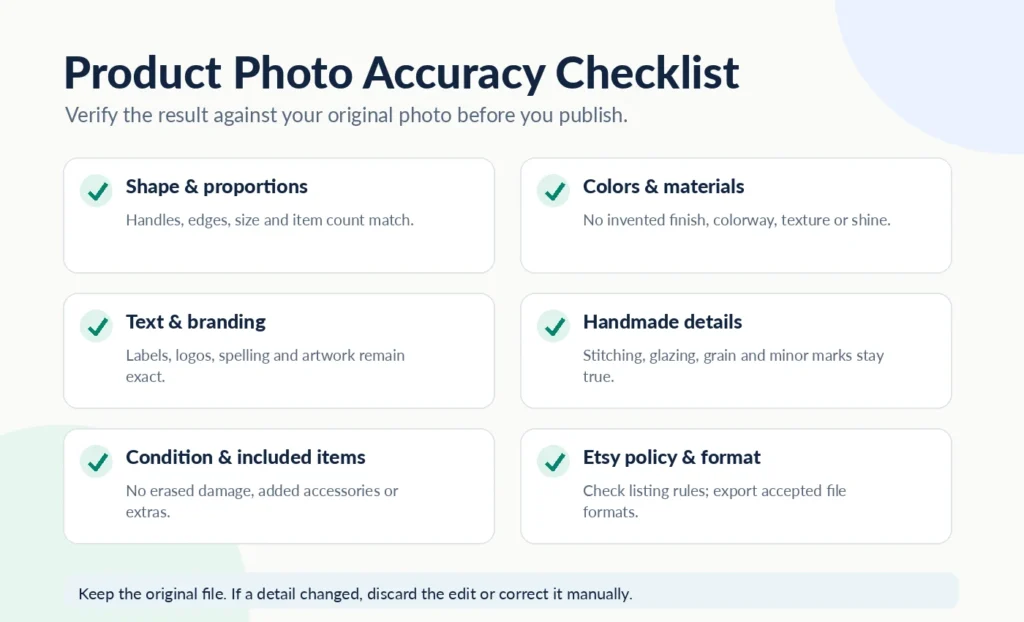
Before you use an edited product image, compare it with the original photograph and the actual item.
There are six things worth checking.
1. Shape and proportions
Are the handles, edges, dimensions, and overall shape correct? Has the tool made the item wider, thinner, taller, or more symmetrical?
2. Colors and materials
Does the image accurately show the fabric, glaze, wood, metal, or other material? Has the finish become unnaturally bright or glossy?
3. Labels and artwork
Check every word, logo, number, and design element. Even small lettering changes can create serious problems for product listings.
4. Handmade details
Look for changes in stitching, engraving, wood grain, decorative patterns, and surface texture.
5. Product condition and accessories
Has the tool hidden a genuine flaw or removed a visible mark? Has it added accessories that aren’t included with the product?
6. Etsy listing requirements
Does the image still comply with Etsy’s current rules for original product photographs? Don’t assume an AI-generated replacement is acceptable just because it looks realistic.
If you’re unsure about a result, return to your original photograph.
A trustworthy photo is more valuable than an attractive but inaccurate one.
Common Nano Banana Product Photography Mistakes
Asking AI to make a “better version” of the product
This sounds harmless, but it gives the model permission to reinterpret the item.
A better-looking necklace might have a different chain. A prettier mug might have a smoother glaze or a completely different handle.
Ask for a specific adjustment instead of an improved version of the product.
Changing colors without checking the real item
Color accuracy matters for clothing, home decor, jewelry, and handmade accessories.
A customer ordering a muted green scarf doesn’t want to receive something that looks entirely different from the listing.
Whenever possible, compare the edited photo with the product under neutral lighting.
Removing real imperfections
Handmade doesn’t always mean perfectly symmetrical.
Natural variations in stitching, pottery, woodworking, and other crafts can be part of what makes the item unique.
Removing those details may misrepresent what customers will receive.
Using generated backgrounds without checking Etsy’s rules
An AI-generated lifestyle scene may look convincing, but that doesn’t establish that it meets Etsy’s original-photo requirements.
Use AI-generated scenes to develop ideas, then create genuine photographs of your products in those settings.
Forgetting to inspect small text
Labels, printed artwork, handwritten details, and packaging text deserve extra attention.
Zoom in before approving the image.
If the text has changed, don’t use the result as an accurate product photograph.
Best Image Sizes and Formats for Etsy Product Photos
There’s a difference between the images you upload to your own website and those you upload to Etsy.
For RanaTariq.com, WebP is a sensible default for featured images and supporting article graphics. It can help keep file sizes manageable without sacrificing too much visual quality.
Etsy has its own supported formats and image requirements.
For ordinary listing photographs, JPEG and PNG are practical choices. Check Etsy’s current image requirements before exporting files.
Etsy recommends listing images with sufficient resolution, typically at least 2,000 pixels on the shortest side, so customers can see product details clearly.
Also pay attention to cropping.
A product that’s positioned too close to the edge may be cut off in thumbnails or search results.
Leave some breathing room around the item, but keep it large enough to see.
And remember that a higher-resolution AI image isn’t necessarily a more accurate product photo.
Frequently Asked Questions
Can Nano Banana edit my original Etsy product photos?
Yes. Nano Banana can edit uploaded photographs. However, the resulting image must still accurately represent the actual product, and its intended use must comply with Etsy’s current listing requirements.
Can I use AI-generated backgrounds for Etsy listings?
Don’t assume generated backgrounds are permitted. Etsy generally requires original photographs of actual items, with limited exceptions. Review the current policy before using substantially AI-altered images in listings.
Which Nano Banana model is best for product photography?
Google offers different Nano Banana models with varying editing capabilities and account availability. For product work, look for the ability to edit an uploaded image and provide precise instructions. Whichever model you choose, verify the result against the original.
How do I stop Nano Banana from changing my product?
Start with a clear original photograph and request one specific adjustment at a time. Tell the model which product details must remain unchanged.
Then inspect the result carefully. Prompt instructions can reduce unwanted changes, but they can’t guarantee perfect preservation.
Can I use Nano Banana images for social media marketing?
Yes, AI-generated concepts and promotional visuals can be useful for social media. Make sure your content represents the product truthfully and complies with any applicable platform, advertising, and intellectual property rules.
Can I sell AI prompt bundles on Etsy?
Etsy’s Creativity Standards specifically identify AI prompt bundles as an example of content that doesn’t qualify under its “designed by a seller” category.
Check Etsy’s current rules before planning to sell prompt collections.
Final Thoughts
Nano Banana gives Etsy sellers another way to explore product photography, adjust images, and develop creative ideas.
But you don’t need to transform every photograph.
Sometimes the best edit is simply improving the lighting or cropping the image a little better. Sometimes it’s taking a new photograph.
The important thing is making sure customers see the product they’re actually going to receive.
Start with your own photos, give Nano Banana specific instructions, and check every result before using it.
If you want to experiment with creative image generation beyond product photography, you can also explore our guide to the best Nano Banana image prompts of 2026.
Good product photography should make your handmade work look appealing. It should also make it easy for customers to trust what they’re seeing.