
Your website looks ready. The homepage has photos, the services page is written, and the contact form appears where it should. You’re tempted to hit Publish and send the link to everyone you know.
Before you do, try to use the site like a first-time customer. Can you understand what the business offers in a few seconds? Does the phone number work on a mobile screen? Can someone submit a form and receive a response? Is the site actually ready for Google to find it?
This small business website launch checklist covers the practical checks that matter before and just after launch. It focuses on customer experience, accessibility, search visibility, security, and the small mistakes that are easy to overlook when you’re concentrating on design.
Table of Contents
Small Business Website Launch Checklist at a Glance
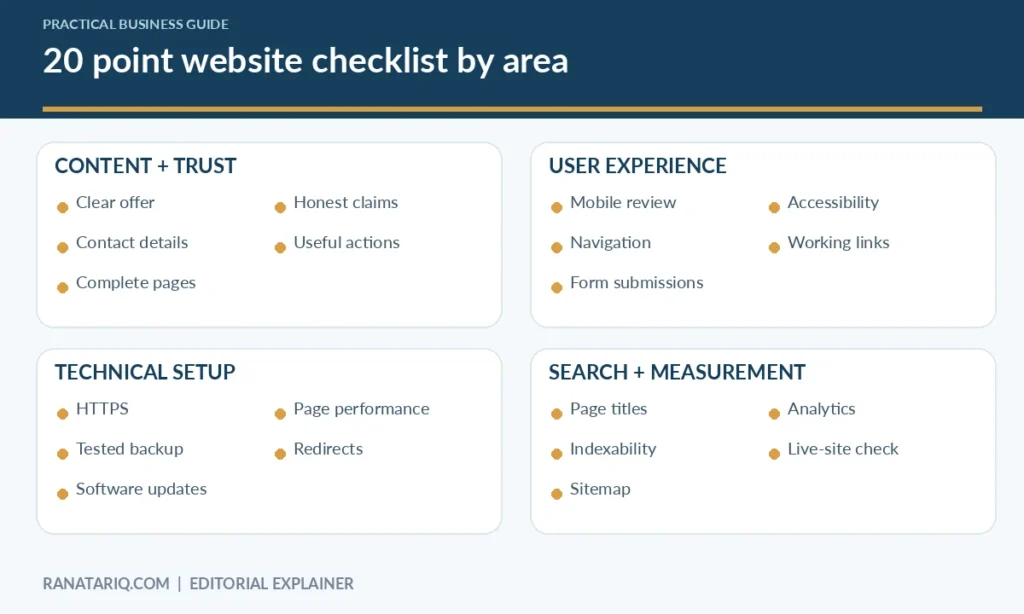
The list is organized into four groups. You don’t need a large technical team to complete most of it, but some checks may require help from your hosting provider or website developer.
| Area | Checks |
|---|---|
| Content and trust | Clear offer, accurate contact details, complete pages, consistent branding, useful calls to action |
| User experience | Mobile layout, navigation, forms, accessibility, working links |
| Technical setup | HTTPS, backups, updates, speed, redirects |
| Search and measurement | Page titles, indexability, sitemap, analytics, post-launch verification |
A website can launch without every improvement being perfect. However, issues that stop customers from contacting you, expose private information, or prevent key pages from being accessed should be fixed before promotion.
Content and Trust Checks
1. Make the offer obvious on the homepage
A visitor should be able to tell what you do, who you help, and what to do next without reading five paragraphs. “Quality solutions for modern businesses” could describe almost anything. “Residential plumbing repairs in Denver” is specific and useful.
Use a short heading, supporting description, and one clear action such as Request an estimate or View services. If you serve particular locations, state them accurately rather than trying to rank for places where you don’t operate.
2. Check business contact details everywhere
Confirm your name, telephone number, email address, operating hours, and location information where applicable. Test clickable phone and email links on a real phone, not only in a desktop preview.
Look at the footer, contact page, service pages, and any structured business information you publish. Inconsistent details make it harder for customers to know which information is current.
3. Complete your essential pages
Most service businesses need a useful homepage, services or products page, about page, and contact page. Depending on the business, customers may also expect shipping, returns, booking, pricing, or frequently asked questions.
Don’t create a page just to fill a navigation menu. Make each page answer a real question and lead naturally to the next action a customer might take.
Some industries need more specialized website features. For example, mortgage brokers and loan officers may need loan-program pages, mortgage calculators, and inquiry forms to help visitors find relevant information and request assistance. Platforms such as iReadySites’ mortgage website platform show how these industry-specific features can be brought together in one website.
4. Check claims, images, and testimonials
Remove placeholder logos, invented testimonials, and promises you can’t support. If you show sample work, explain whether it is a real project, a mockup, or an illustration.
For images, avoid describing AI-generated examples as completed customer projects. Use accurate captions and text alternatives when images convey important information.
5. Make the next step easy to find
Each important page should make it clear what visitors can do next. A service page might lead to a quote request, while a product page might lead to checkout.
Check that buttons have meaningful labels. “Get a quote” is clearer than three different buttons all labeled “Learn more” when they lead to different actions.
User Experience Checks
6. Review every key page on a phone
Open the live or staging site on at least one real mobile device. Check whether headings wrap awkwardly, buttons are too close, and large images push useful content far down the page.
Try common tasks with one hand. Visitors shouldn’t need to pinch and zoom just to read a price or tap the contact button.
7. Test navigation and search
Open every menu item, footer link, and important button. Confirm that the destination matches its label. If you offer site search, try a common customer term and see whether the results are sensible.
Pay attention to links that open a new tab unexpectedly or take the reader to an unrelated page. These are small annoyances that can interrupt a customer’s journey.
8. Submit every form yourself
Fill in the contact or booking form as a customer would. Leave required fields blank, enter an invalid email address, and submit a correct request. Confirm that errors are understandable, the submission is saved or delivered, and the user sees a clear confirmation.
If forms send email notifications, verify delivery to the right inbox. A form that appears successful but never reaches anyone can quietly cost you enquiries.
9. Review accessibility basics
Use meaningful page headings, descriptive links, readable contrast, keyboard-accessible controls, and visible form labels. The W3C form-labeling tutorial explains why form fields need labels that work with assistive technology.
Give informative images useful alt text. The W3C image tutorial explains when descriptive alternatives are needed and when decorative images can use empty alt text.
10. Find broken links and missing files
Click the primary links manually and use a crawler or link checker where practical. Open downloaded PDFs, pricing files, and images to confirm they load correctly and belong to the correct business.
Check that old URLs redirect to an appropriate replacement rather than simply to the homepage. A missing service page should not silently send visitors somewhere irrelevant.
Technical and Security Checks
11. Confirm HTTPS works throughout the site
Load the website using https:// and check for browser security warnings. Forms and checkout pages should never ask for sensitive data over an insecure connection.
Make sure the site’s preferred domain redirects consistently, so visitors aren’t sent between duplicate versions of the same page without reason.
12. Create and test a backup
A backup matters only if it can be restored. Confirm what your host backs up, how often, where copies are stored, and how you would recover the site if a plugin or update breaks it.
Keep appropriate off-site or independent backups for critical assets when possible. Don’t assume that every hosting plan includes the recovery options you need.
13. Update the software and restrict access
On WordPress, review the core installation, themes, and plugins. Remove unused plugins where appropriate, use strong passwords and multifactor authentication when supported, and provide editors only the permissions they need.
Record who manages updates and who to contact if a problem occurs. A good maintenance process is more important than installing every available security plugin.
14. Check page loading and layout stability
Test key pages on mobile and desktop with PageSpeed Insights. Look at image sizes, heavy scripts, and shifts that move buttons as the page loads.
Google’s web performance guidance describes Core Web Vitals and practical measurement methods. Treat lab tests as diagnostic tools, not absolute guarantees of what every visitor will experience.
15. Verify redirects and error pages
Try an obviously wrong URL and see whether the website shows a useful error page. If you’ve redesigned an older site, test important former URLs and their redirect destinations.
Avoid redirect loops and chains that confuse visitors or search engines. Record the URLs that were changed so you can check them again after launch.
Search Visibility and Measurement Checks
16. Give every important page a meaningful title
Write a distinct, descriptive page title that matches the content. A page about deck installation should not simply be titled “Services” if a clearer title is available.
Use headings to organize content naturally and write a helpful meta description. Google’s SEO Starter Guide explains the fundamentals without requiring unnatural keyword repetition.
17. Check whether important pages are indexable
WordPress has a setting that can discourage search engines from indexing a site. Also review any SEO plugin settings, noindex directives, and robots rules used during development.
Only intended public pages should be eligible for indexing. Search engines decide what to index, so removing restrictions does not guarantee immediate inclusion.
18. Check your sitemap and Search Console access
Find the site’s XML sitemap and verify that it lists the canonical pages you want discovered. Set up or review Google Search Console ownership and submit the sitemap if needed.
Google explains that submitting a sitemap is a discovery hint, not an indexing guarantee. Use the indexing and page inspection reports to investigate important URLs after launch.
19. Make sure analytics collects the right data
If you use GA4 or another analytics system, verify that page views and important actions are recorded with consent settings handled appropriately. Test the contact form or checkout completion event instead of assuming that a plugin installation means measurement is correct.
Google Search Console and GA4 can help answer different questions about how customers discover and use your site. Check that the connected properties and tracking configuration are correct.
Google Search Console vs GA4 guide
20. Do a real post-launch check
Once the site is public, revisit the homepage, a service page, the contact form, and your most important conversion path. Test from an incognito window and a mobile connection if possible.
Confirm your canonical domain works, notifications arrive, analytics registers activity, and no staging password remains active. Keep a short issue log with an owner and deadline for anything found after launch.
A Practical Launch-Day Plan
Don’t try to fix every minor design preference on the day you publish. Prioritize issues by whether they prevent contact, transactions, accessibility, security, or discovery.
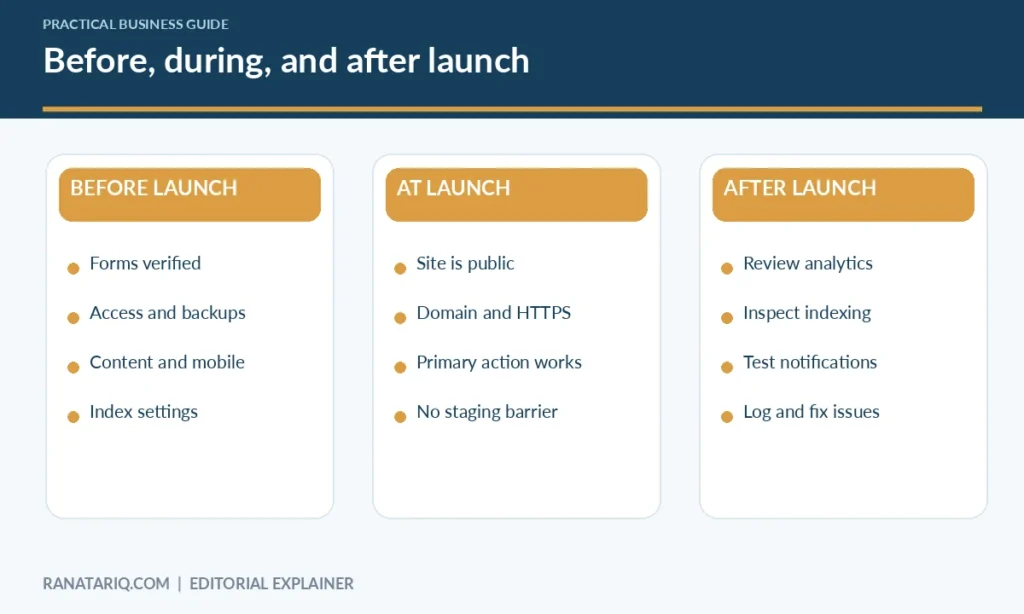
Before launch: Fix blocking issues, take a backup, confirm forms, and review important pages. At launch: Make the site public, verify the preferred domain, and test the primary conversion path. After launch: Check analytics, Search Console, error reports, and customer enquiries.
Assign one person to make the final release decision. If several people are involved, keep a shared checklist so tasks don’t get marked complete based on assumptions.
WordPress-Specific Checks for Astra and Rank Math
If you’re using WordPress with Astra and Rank Math, preview your pages using the actual theme template. Confirm that the post title, featured image, breadcrumbs, and heading structure aren’t duplicated by manually inserted blocks.
Set appropriate titles and descriptions in Rank Math, check indexability, and ensure that a sitemap is available. Don’t add extra SEO plugins that duplicate existing functionality just because they have different recommendation scores.
If you’re using Google Site Kit, verify that the connected Search Console and Analytics properties belong to the correct live domain. Site Kit simplifies access to reports, but it doesn’t replace checking whether events and pages are measured as intended.
Frequently Asked Questions
How long does it take for Google to index a new website?
There is no fixed deadline. Google may discover and index eligible pages at different times, and submitting a sitemap does not guarantee indexing. Check Search Console for status and technical problems.
Do I need Google Analytics before launch?
Not strictly, but setting up appropriate measurement before you begin promotion gives you more useful early data. Make sure the setup follows relevant privacy and consent requirements.
What should I fix first if the website isn’t ready?
Fix broken forms or checkout flows, security warnings, incorrect business information, and major accessibility blockers first. Cosmetic improvements can usually follow after the basic customer journey works.
Is a mobile-friendly website enough for SEO?
No. Mobile usability matters, but content quality, discoverability, technical setup, and many other factors also affect search visibility. Don’t treat any one check as a ranking guarantee.
Should I hide unfinished pages from search engines?
Keep incomplete private or staging content from public access or indexing where appropriate. For a production site, review page-level settings carefully so essential pages aren’t accidentally blocked.
Final Thoughts
A small business website launch checklist should help you catch issues customers would notice, not bury you in technical scores. Check the content, forms, mobile experience, security, indexability, and measurement before announcing the site.
Then repeat a smaller check after launch. The first few real enquiries can reveal problems that a polished design preview never shows, and a clear issue log will help you improve the site without guessing.