
You’ve got a 70-page report to read, a deadline coming up, and one question you need answered.
You could spend the next hour searching through the document. Or you could upload it to an AI tool and ask for the answer.
Both ChatGPT and Claude can help, but they don’t always handle PDFs in the same way.
Some documents are easy. They contain selectable text, clear headings, and straightforward tables. Others have scanned pages, complex charts, handwritten notes, or information scattered across hundreds of pages.
Those differences matter more than which chatbot has the biggest reputation.
If you’re comparing ChatGPT vs Claude for PDF analysis, the best choice depends on the type of document you’re working with, what you need to extract, and how important accuracy is.
This guide explains the differences, where each tool makes sense, and how to test them using the same PDF.
You’ll also get five prompts you can copy whenever you need to summarize a document, check figures, analyze a research paper, or find important details.
ChatGPT vs Claude for PDF Analysis by Document Type
Here’s the short version.
Both tools support PDF uploads and can help you understand written documents.
The biggest differences come down to how they process visual content, how much material they can handle, and what additional tools are available for analyzing the information.
| What you need | ChatGPT | Claude |
|---|---|---|
| Summarize a text-based PDF | Supported | Supported |
| Answer questions about a report | Supported | Supported |
| Compare two documents | Supported | Supported |
| Extract information from tables | Supported, but verify accuracy | Supported, but verify accuracy |
| Read charts embedded in a PDF | Documented visual retrieval on Enterprise | Visual PDF analysis supported up to 100 pages |
| Analyze a scanned PDF | Depends on accessible text and visual processing | Can analyze visual PDF content within the supported page limit |
| Work with very long PDFs | Document retrieval and upload limits apply | Supports PDFs up to 1,000 pages, with visual limits |
| Analyze data using code | Data Analysis capabilities | Code execution and file creation capabilities |
| Produce downloadable analysis files | Supported workflows and tools | Supported workflows and tools |
There’s no universal winner.
If your PDF contains normal selectable text, either tool may be suitable.
If you’re working with a short, image-heavy PDF and don’t have ChatGPT Enterprise, Claude has a documented advantage because it can analyze embedded PDF visuals.
If you need to analyze extracted numbers, build charts, or work with spreadsheet data, both platforms offer tools worth exploring.
The right decision starts with the document, not a brand preference.
How ChatGPT Handles PDF Files
ChatGPT supports PDF uploads on free and paid plans, subject to usage limits and account settings.
You can upload a report and ask questions about its contents.
For example, you could ask ChatGPT to summarize a financial report, identify the main conclusions of a research paper, or compare information from two policy documents.
OpenAI also provides Data Analysis features for working with structured information.
That can be useful if you’re extracting figures from a report and want to organize or analyze them.
Where ChatGPT works well
A practical use case is reviewing a document that contains plenty of readable text.
Imagine you’ve downloaded a market research report.
Instead of asking for a general summary, you could request the three findings most relevant to your business, the evidence supporting each finding, and any limitations mentioned by the authors.
You can also ask follow-up questions without starting the analysis again.
What about PDF charts and images?
This is an important limitation.
According to OpenAI’s documentation on PDF visual retrieval, ChatGPT Enterprise supports interpreting images, graphs, and diagrams embedded in PDFs.
OpenAI’s general file-upload documentation states that other plans use text-based retrieval for documents rather than that embedded visual content.
That means uploading a PDF containing a chart doesn’t automatically guarantee that ChatGPT has interpreted the chart itself.
If you don’t have Enterprise and the visual matters, you can try uploading the relevant page as a separate image using ChatGPT’s image-input capabilities.
That’s a different workflow from having the model read the embedded visual directly from the PDF.
You still need to verify any numbers or conclusions it produces.
How Claude Handles PDF Files
Claude also supports PDF uploads and lets you ask questions about document contents.
You can use it to summarize reports, find specific information, explain technical passages, and compare documents.
One useful difference is its documented support for visual PDF analysis.
According to Claude’s file upload documentation, Claude analyzes both text and visual elements in PDFs containing 100 pages or fewer.
For PDFs from 101 to 1,000 pages, it processes the text but not the embedded visual elements.
That makes the document’s length important.
Where Claude makes sense
Suppose you’re reviewing a 35-page research report.
It contains written findings, several diagrams, and a few charts explaining the results.
Claude’s documented visual PDF capability makes it a reasonable tool to try because it can process those visual elements within the supported page range.
But don’t confuse access to the graphics with guaranteed accuracy.
A chart can contain tiny labels, unclear legends, unusual scales, or numbers that are difficult to interpret.
Ask Claude to explain what it sees, then check the answer against the actual chart.
What about longer reports?
Claude’s documentation currently allows PDF chat uploads of up to 1,000 pages.
For documents longer than 100 pages, visual content won’t receive the same processing.
The tool’s context and processing limits also matter, so an upload being accepted doesn’t guarantee that every detail will be available or recalled perfectly.
For a large report, focus your questions on specific sections or split the document into smaller files when necessary.
ChatGPT vs Claude for Scanned PDF Analysis
A scanned PDF isn’t the same as a normal digital document.
A digital PDF often contains selectable text.
A scanned PDF may simply contain photographs of pages. The words look readable to you, but they might not exist as machine-readable text inside the file.
That’s where OCR becomes important.
OCR stands for optical character recognition. It converts text in scanned images into machine-readable characters.
Which tool should you try?
For a scanned document under 100 pages, Claude is a reasonable first option because its current PDF feature documentation supports visual analysis within that limit.
ChatGPT Enterprise is also designed to interpret visual content embedded in PDFs.
For ChatGPT plans using text-only PDF retrieval, a scanned document without an accessible text layer may be difficult to analyze reliably.
You may need OCR software or a separate image upload.
Don’t assume a scanned document was read correctly
Even when an AI tool can see a page, it may misread the contents.
Common problems include confusing similar-looking numbers, missing footnotes, mixing up table columns, and misunderstanding handwritten annotations.
If you’re working with an invoice, contract, medical document, or financial report, check the extracted information against the original.
For sensitive documents, verify that the service and account settings meet your privacy requirements before uploading anything.
Which Is Better for Research Papers?
Both ChatGPT and Claude can help make academic papers easier to understand.
You can ask either tool to explain technical language, summarize a methodology, or identify the limitations of a study.
But there’s a difference between summarizing what a paper says and judging whether its conclusions are justified.
A confident summary can still miss something important.
Start with the research question
Instead of asking the AI to “summarize this paper,” be specific.
Ask it to identify the research question, the study design, the sample size, the main findings, and the limitations.
Then ask it to distinguish between what the researchers directly observed and what they inferred from the findings.
That usually produces a more useful reading guide.
Pay attention to citations
Neither tool should be treated as a substitute for checking the source.
Ask for page references and brief supporting passages.
Then open the PDF yourself and confirm that the information is really there.
PDF viewer page numbers may differ from page numbers printed in the document.
Claude’s own documentation recommends using the page numbers displayed by the PDF viewer.
If a tool gives a reference you can’t find, ask it to locate the exact section again.
Don’t cite the AI response as if it were the original research paper.
Which Is Better for Tables, Numbers, and Financial Reports?
This is where it’s especially important to separate language understanding from numerical accuracy.
Both platforms support workflows for extracting, organizing, and analyzing structured data.
OpenAI provides Data Analysis capabilities in ChatGPT.
Anthropic also documents code execution and file creation in Claude, including workflows for extracting PDF tables and creating spreadsheets.
That doesn’t make either model automatically accurate at reading every table.
A table inside a PDF might have merged cells, multi-line headings, or values formatted in a way that causes extraction errors.
A better workflow for numerical documents
If you’re reviewing a financial report, don’t immediately ask the AI for an investment conclusion.
First, ask it to extract the specific numbers you need.
Then verify the numbers, reporting periods, and units against the original document.
Once the data is correct, use the tool’s data analysis features to perform calculations.
For example, if you want to compare revenue across three years, check that the AI hasn’t mixed annual revenue with quarterly revenue.
It’s also worth confirming whether the amounts are shown in dollars, thousands, or millions.
For high-stakes decisions, a human should review both the source figures and the calculations.
How to Compare ChatGPT and Claude Using the Same PDF
Reading other people’s opinions can help, but your own documents are more relevant.
A fair test doesn’t need to be complicated.
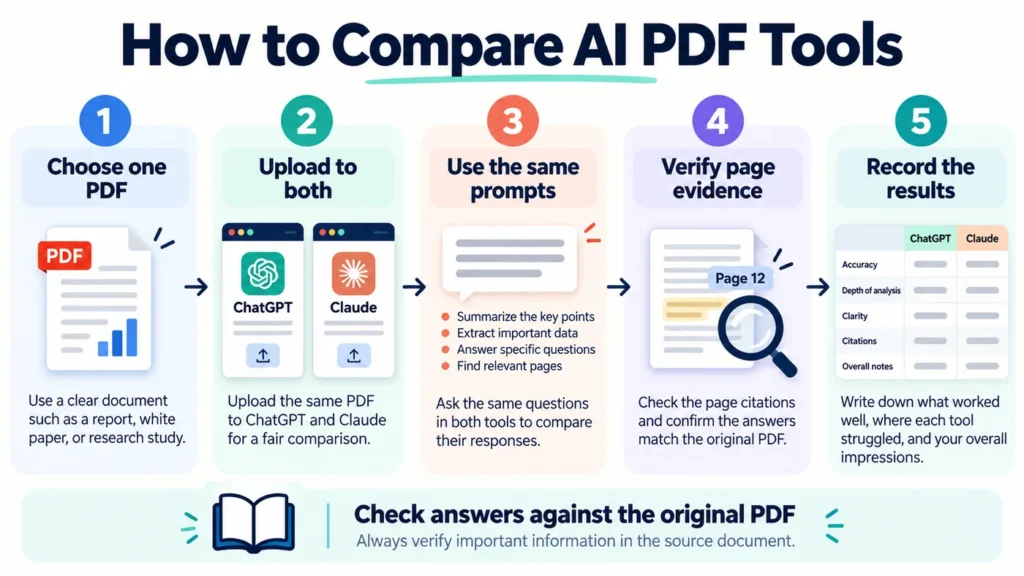
Choose one PDF and give both tools the same questions.
Use the same document, as similar as possible a set of tool settings, and the same evaluation criteria.
Step 1. Choose a suitable test document
Start with a public report or research paper containing 15 to 40 pages.
A document with a mixture of text, tables, and charts is useful because it gives you several things to evaluate.
Avoid confidential or personal information for your first test.
Step 2. Upload the same file to both platforms
Upload the same PDF to a new conversation in each tool.
Make a note of the models and plans you’re using.
That matters because document-processing capabilities can depend on the account and model.
Step 3. Use identical prompts
Ask both tools the same questions.
For example, request a concise summary, the main findings, and the page numbers supporting those findings.
You can then ask them to extract a table or explain a chart.
Don’t give one tool extra instructions that the other doesn’t receive.
Step 4. Verify the answers
Read the relevant pages yourself.
Check whether the claims are supported, the numbers match, and the page references are correct.
Don’t award credit just because an answer sounds convincing.
Step 5. Record the results
A simple scorecard is enough.
| Test | ChatGPT score | Claude score |
|---|---|---|
| Summary accuracy | Your score | Your score |
| Exact information extraction | Your score | Your score |
| Page reference accuracy | Your score | Your score |
| Table and number accuracy | Your score | Your score |
| Clear explanation | Your score | Your score |
Use a simple scoring method.
Give 0 points for an incorrect or unsupported answer, 1 point for a partly correct answer, and 2 points for a correct answer supported by the source.
Only score a visual question when that tool and plan actually support the relevant visual input.
This isn’t a scientific benchmark. It’s a practical way to decide which tool handles your own documents better.
Five PDF Analysis Prompts to Test in ChatGPT and Claude
You don’t need complicated prompts to get useful answers.
The goal is to give the model a clear task and require evidence from the file.
These five prompts work as a starting point for either platform.
Prompt 1. Summarize a Long PDF Without Missing the Main Points
Use this for business reports, research papers, and policy documents.
Copy this prompt
“Read the uploaded PDF and write a concise summary of its main purpose, key findings, supporting evidence, and important limitations. Organize the answer into clear sections. Include page references for factual claims whenever you can verify them. Do not add information that isn’t supported by the document. If a section is unclear or unavailable, say so.”
What to check
Look for missing qualifications, invented conclusions, and statements that sound more certain than the original author intended.
Prompt 2. Find Specific Information With Page References
This is useful when you need an answer quickly but still want to verify it.
Copy this prompt
“Find every relevant section in the uploaded PDF that discusses [topic]. For each section, provide a brief explanation, the PDF viewer page number, and a short supporting quotation when available. Separate directly stated facts from your interpretation. If the document doesn’t answer the question, tell me rather than guessing.”
What to check
Open the referenced pages and confirm that the quotations and explanations match.
Prompt 3. Extract a Table Into a Spreadsheet-Friendly Format
Try this with financial reports, survey results, and other documents containing structured information.
Copy this prompt
“Locate the table about [topic] in the uploaded PDF. Extract the column headings, row labels, and values into a clean table. Preserve all numbers, units, dates, footnotes, and missing values exactly as shown. Identify the source page. Do not calculate or estimate values that aren’t present. Flag any cell that you cannot read confidently. After extraction, explain how I can verify the table against the original.”
What to check
Compare each row and column with the PDF.
If a table is large, review it in sections rather than assuming the entire extraction is error-free.
Prompt 4. Critically Analyze a Research Paper
This prompt is useful for students, researchers, and professionals reviewing evidence.
Copy this prompt
“Analyze the uploaded research paper. Identify the research question, methodology, sample or data source, main results, study limitations, and conclusions. Explain which findings are directly supported by the reported evidence and which conclusions require caution. Provide source page references wherever possible. Do not invent statistical results or claims that aren’t stated in the paper. Finish with five questions a careful reader should ask before relying on the findings.”
What to check
Pay attention to whether the AI correctly distinguishes correlation from causation and accurately reports the study limitations.
Prompt 5. Explain Charts and Figures Without Inventing Numbers
Use this only when your model and account can access the relevant visual content.
Copy this prompt
“Examine the chart or figure on PDF viewer page [number]. Identify the chart type, title, axes, labels, legend, units, and main pattern. Describe only what is visible. Do not estimate exact values unless they are explicitly labeled or can be reliably read. If you cannot access the embedded chart, state that clearly instead of inferring its contents from the surrounding text.”
What to check
Confirm that the tool actually had access to the chart.
Then review axis scales, legends, dates, and numerical claims.
A convincing explanation isn’t proof that the visual was read correctly.
How to Check Whether an AI PDF Answer Is Accurate
The most useful AI PDF workflow includes a verification step.
Otherwise, you might save time reading the document but lose that time fixing mistakes later.
Here are six things to check.
1. Readable text
Confirm that the document contains accessible text or that the tool can actually process its scanned pages.
If necessary, use OCR before starting.
2. Page references
Check the exact pages cited by the AI.
Remember that PDF viewer page numbers can differ from printed page numbers.
3. Numbers and units
Look closely at percentages, currencies, dates, quantities, and units.
A single misplaced decimal point can change the meaning of a report.
4. Tables and charts
Don’t assume the model has interpreted a chart just because it mentions the chart’s title.
Check whether the visual was accessible and whether the numbers match.
5. Direct quotations
If you plan to quote a passage, compare the AI’s wording with the original document.
A paraphrase should not be presented as an exact quotation.
6. Sensitive information
Review the privacy implications before uploading contracts, customer data, unpublished research, personnel records, or confidential reports.
A file’s contents may be processed and retained according to the provider’s service terms and your account settings.
For important legal, financial, medical, or business decisions, use AI to assist your reading, not replace professional review.
ChatGPT vs Claude File Limits in 2026
Published limits can help you decide which tool to try, but they don’t tell the whole story.
Here’s what the current official help pages document.
| Upload detail | ChatGPT | Claude |
|---|---|---|
| Maximum document file size | 512 MB per file | 500 MB per file in chats |
| Additional document limits | 2 million tokens per text or document file | Context and extracted-token limits also apply |
| PDF page limit | No single page limit stated in the cited general upload guide | 1,000 pages |
| Embedded PDF visual processing | Enterprise visual retrieval | Up to 100 pages |
| Larger PDF visual handling | Depends on supported plan and workflow | PDFs over 100 pages are text-only |
| Free access | File uploads available with limits | File uploads available subject to account limits |
These are upload and processing limits, not promises of perfect comprehension.
In particular, accepting a large file doesn’t mean a model will reliably retrieve every sentence or correctly interpret every figure.
Check the latest ChatGPT file-upload requirements and Claude upload requirements before choosing a plan for large or complex documents.
Is ChatGPT or Claude Cheaper for PDF Analysis?
Both services provide free access with limitations, alongside paid options.
The actual cost depends on your subscription, usage, available features, and whether you’re using the consumer app or an API.
If you only analyze an occasional short report, start by checking what you can do on the free plans.
If you work with long documents every day, a paid plan may be more convenient.
But don’t choose a subscription based on price alone.
For visual PDFs, make sure your chosen plan actually supports the type of input you need.
For frequent research or business use, test a few representative documents before paying for a long-term subscription.
Pricing and allowances can change, so check the official ChatGPT pricing page and Claude pricing page for current details.
What About Privacy and Confidential PDFs?
Uploading a PDF means sharing its contents with the service processing it.
Before uploading sensitive material, review the applicable data controls, retention settings, and organizational policies.
OpenAI explains that data use for ChatGPT consumer services depends on account settings, while its business offerings have different training practices.
Anthropic also distinguishes between consumer and commercial data-handling arrangements.
If you’re working with confidential company documents, don’t assume a personal account has the same protections as a managed business workspace.
Consider removing personal information, using approved organizational tools, and checking who can access stored or shared files.
The safest approach is to avoid uploading material that you don’t have permission to share.
Which Tool Should You Choose?
Your best option depends on what you actually do with PDFs.
Choose ChatGPT when
You already use ChatGPT for your research and document workflows, most of your PDFs contain readable text, or you want to combine document analysis with its other supported data analysis capabilities.
If you have ChatGPT Enterprise, its embedded PDF visual retrieval is another relevant factor.
Choose Claude when
You frequently work with shorter PDFs containing charts, diagrams, or scanned pages and want documented visual analysis support.
Claude is also worth trying for lengthy text-based reports and workflows that produce downloadable documents or spreadsheets.
Test both when
Accuracy is the main concern, you have unusual document layouts, or you routinely extract tables and technical information.
Use identical prompts and compare the answers with the original.
You may find that one tool works better for a particular document type, while the other is more convenient for the next task.
That’s a more useful conclusion than naming one winner for every situation.
Frequently Asked Questions
Is ChatGPT or Claude better for reading PDFs?
Both can read and analyze text-based PDFs. Claude currently documents visual PDF analysis for documents up to 100 pages. ChatGPT’s documented embedded-PDF visual retrieval is available on Enterprise. For ordinary text-based documents, compare both using the same questions.
Can ChatGPT analyze charts inside a PDF?
ChatGPT Enterprise supports visual retrieval of charts and images embedded in PDFs. OpenAI’s general documentation says other plans use text-based retrieval for documents. Uploading a chart separately as an image may be an alternative workflow.
Can Claude read scanned PDFs?
Claude supports visual analysis of PDFs up to 100 pages. That can help with scanned documents, although extraction quality depends on image clarity and the document’s layout.
Which AI tool is better for long research papers?
Both can help analyze long research papers, but their limits and processing methods differ. Claude supports PDFs up to 1,000 pages, with visual analysis limited to the first category of documents containing 100 pages or fewer. ChatGPT uses its own document-upload and retrieval processes. Always verify specific claims.
Can either tool extract tables from PDFs?
Yes. Both support document analysis and workflows that can organize extracted information. However, either tool can misread complex tables, so review headings, values, units, and footnotes against the source.
Can I use ChatGPT and Claude for free to analyze PDFs?
Both provide access to PDF-related features on free plans, subject to usage and feature limits. Check current plan details before relying on a particular workflow.
Should I trust AI-generated page citations?
Not without checking. AI tools can provide incorrect page references or quotations. Open the original PDF and verify the supporting text before using it in academic or professional work.
Final Thoughts
Choosing between ChatGPT and Claude for PDF analysis doesn’t have to be complicated.
Start by looking at your document.
Is it mostly searchable text? Does it contain charts or scanned pages? Is it a short report or a massive technical document? Do you need a quick summary or verified figures for an important decision?
Those questions will help you choose a tool that fits the job.
For normal text-based PDFs, both platforms are worth considering.
For shorter visual PDFs, Claude’s documented visual support is a meaningful advantage if you don’t have ChatGPT Enterprise.
For financial data, technical tables, and research papers, the most important step is still checking the AI’s answers against the original document.
Use the five prompts in this guide to compare both tools with your own files. Keep notes on where each performs well and where it struggles.
That way, your decision is based on useful results rather than marketing claims.
For more guides on practical AI software, explore our AI Tools & Reviews articles.